Mobile Apps
Build your mobile app with Myndlab
Mobile apps
Overview
Myndlab is a powerful tool to help you build your mobile app. In this guide, we will walk you through the steps to turn your ideas into design, your designs into a mobile app and your mobile app into a product that you can share with the world.
Before you start
Before you start building your mobile app, make sure you have a myndlab.ai account and that you are logged in.
- 1
Sign in
Go to myndlab.ai and sign in with your email or Google account.
- 2
Create a new project
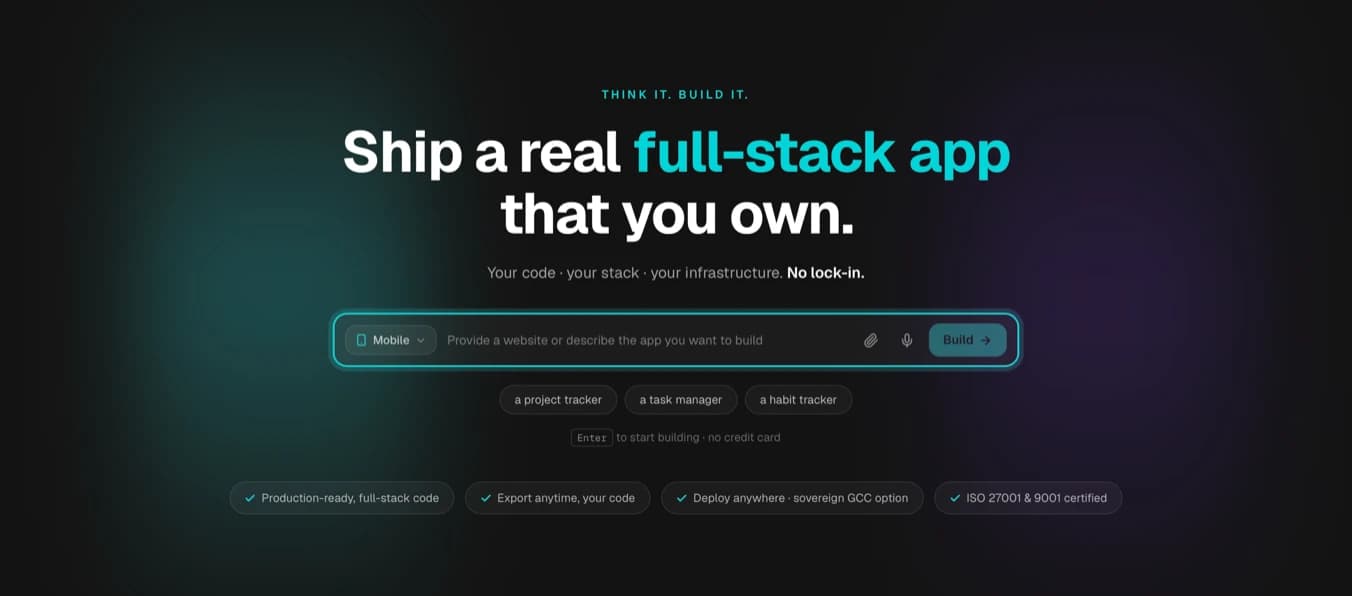
Click on the 'Mobile' drop down button to create a new project for your mobile app.
Write a prompt
Start by writing a prompt that describes the functionality of your mobile app. Use your own words to describe your idea and Myndlab will help you with follow up questions to refine your prompt.
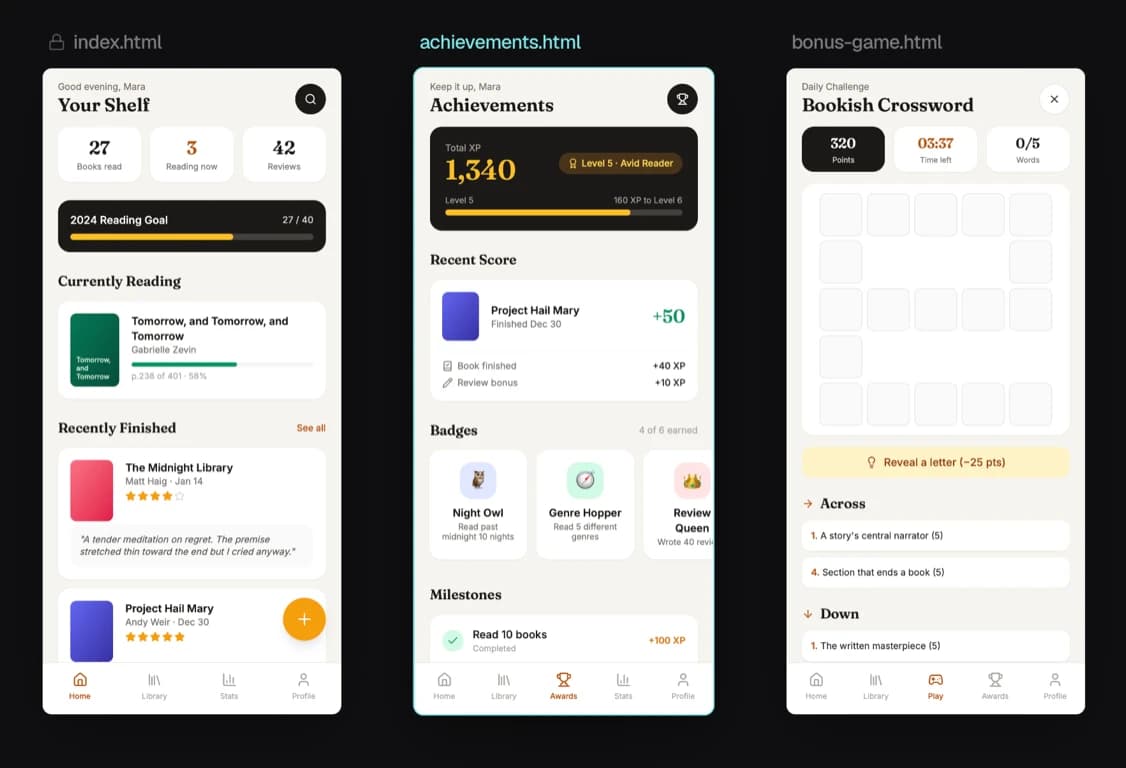
Build a working mobile app for "A book tracker". Add pages for the user to track the number of books read, the reader's bookshelf, and a feature to showcase the reader's achievements.You can also use 'Design' to create a visual representation of your app.
Build
- 1
End-to-End
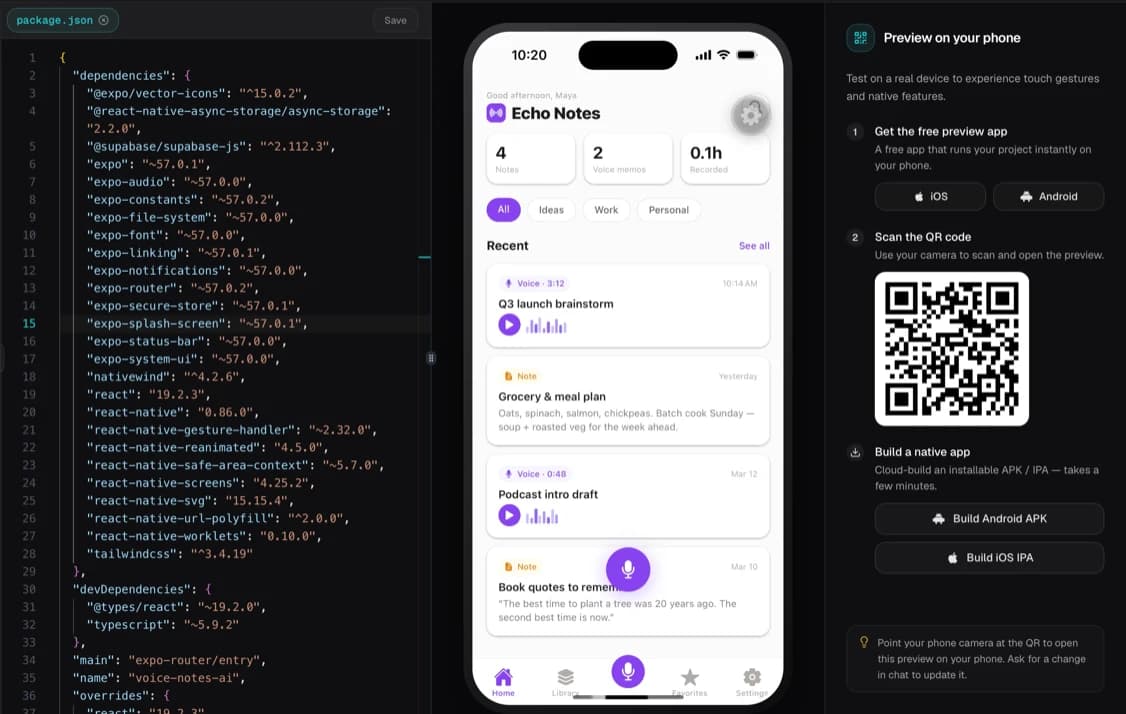
The coding agent makes the code available end-to-end as the app is being built.
- 2
Packaging and deployment
The completed code is then packaged and deployed within the Myndlab environment.
Preview
Download Expo Go on your device from the App Store or Google Play Store. This will allow you to preview the app you are building in real time.
Once deployment completes, you can switch between iOS and Android to view the live demo. A QR code appears on the 'Build' screen allowing you to access the application through Expo Go on your actual device within seconds.
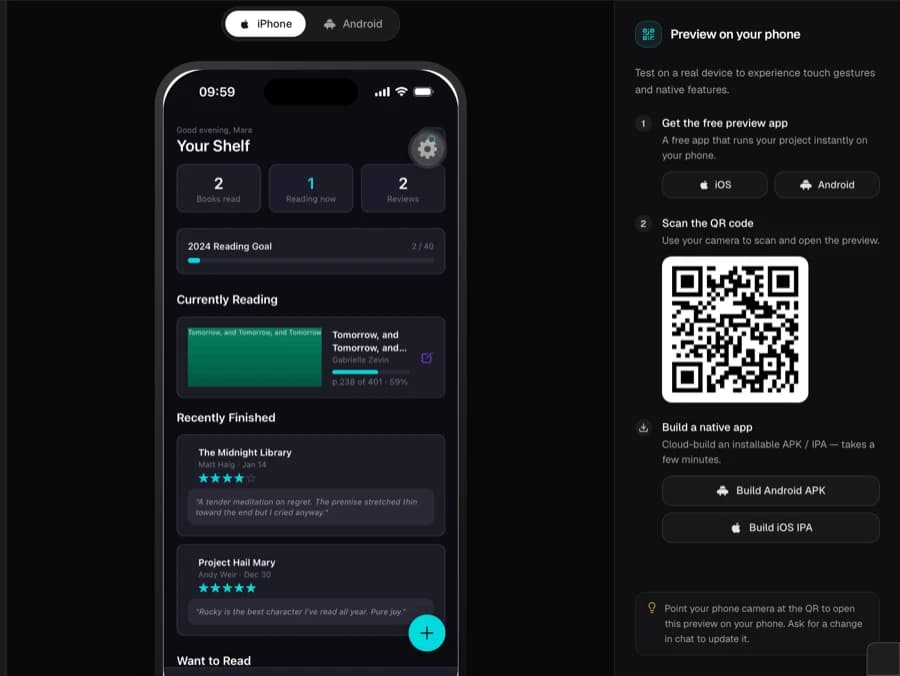
Things to check in your first preview:
- 1
Does the design look right?
Check layout, colors, and fonts on your actual device screen.
- 2
Does navigation work?
Try moving between screens, scrolling, and back buttons. Make sure every path lands on the right screen.
- 3
Does data persist?
Create at least one record. Close Expo Go and reopen it — confirm the record is still there.
- 4
Does it work on both platforms?
If you tested on iOS, try scanning the same code from an Android device (or vice versa) to confirm compatibility.
The Expo Go preview is real. It has live data and a running API behind it. You don't need to rebuild the app to check changes; they show up as soon as they're saved.
More features can always be added later with the help of Myndlab's follow up questions or suggestions.
Tweak your design
Click back into the prompt box and describe what you want to change. You don't need to re-describe the whole app — just say what's different, whether that's colors, layout, or a specific component's behavior.
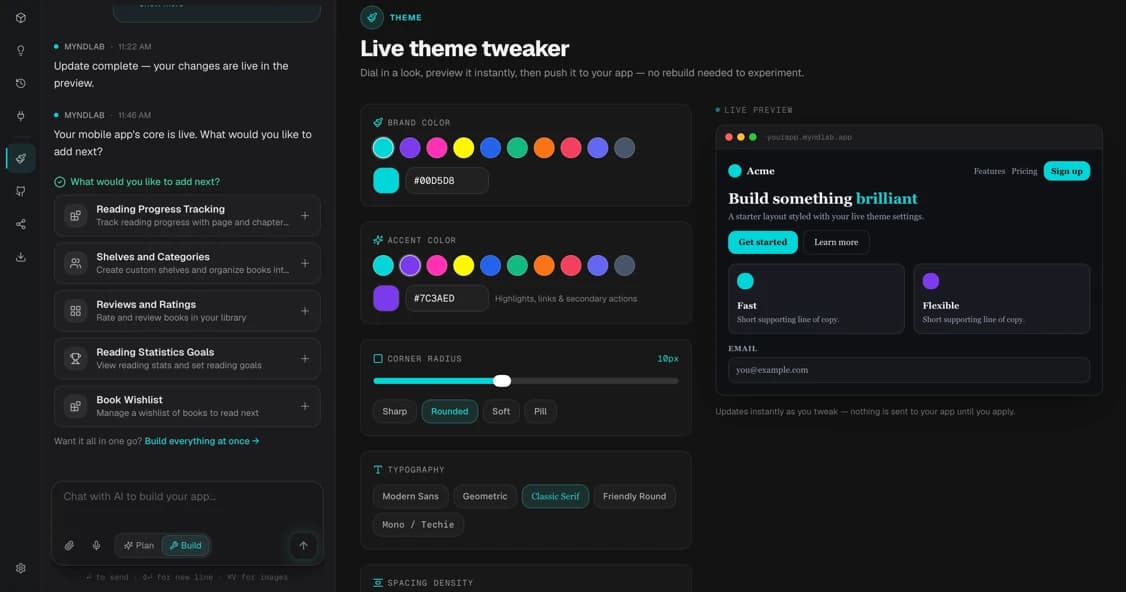
Change the accent color to a warm orange and switch the header font to something rounder and friendlier.

Also add a swipe-to-delete gesture on the book list items.
Myndlab reads the existing code and applies the change as a diff rather than rebuilding from scratch. The update is packaged and deployed automatically, and it reflects in your Expo Go preview without needing to scan the QR code again.
Short, focused change requests build faster and have fewer unexpected side effects. Tweak one style or feature at a time, then preview the result before moving to the next.
Next steps
Now that you've built your first mobile app and tested it with Expo Go, you can publish it to the App Store and Google Play Store.
This requires an Apple Developer Program membership